

buy allmiibo here for cheap price
User Manual: Pixl.js Firmware Upgrade Guide
This guide covers three methods to upgrade your device: using an iOS device (Apple), an Android device, and a Web Browser (PC/Mobile).
⚠️Note: This is for professional only. Do at your own risk! any brick device with your fault, no more exchange to new one/return.
⚠️ Important: Before You Start
Identify Your Screen Type: You must download the correct firmware version for your specific hardware.
-
OLED Version: For newer devices with OLED screens.
-
LCD Version: For older devices with standard LCD screens.
Download Sources:
-
GitHub: Recommended for most users.
-
Gitee: Recommended if you are in Mainland China and cannot access GitHub.
Method 1: iOS (Apple) Upgrade
This method uses the iNFC app found in the App Store.
-
Install the App: Search for and download iNFC from the Apple App Store.
-
Open the App: Launch iNFC and tap the "N" Menu at the bottom of the screen.
-
Select Firmware:
-
Tap "Firmware Upgrade" (top right).
-
Tap "Pixl" (top left).
-
The app should display the latest firmware versions. Ensure you select the correct version (OLED or LCD) for your device.
-
Note: You can also view historical versions by tapping the top right corner if you need to downgrade.
-
-
Prepare the Device (Enter DFU Mode):
-
On your Pixl.js device, go to Settings.
-
Select Firmware Update.
-
The screen will show that it has entered DFU Mode.
-
-
Start Upgrade:
-
In the iNFC app, tap Select.
-
The app will automatically search for and connect to the "Pixl DFU" Bluetooth signal.
-
The upgrade process will begin. You can exit the app to the background; the update will continue running.
-
-
Finish:
-
Wait for the "Upgrade Successful" prompt. The device is now updated.
-
Method 2: Android Upgrade
At the time of the video, the official Android version of the iNFC app was still in development.
-
Download the APK: Look for the Android installation package (APK) link provided in the video description or comments of the source you are viewing.
-
Install & Run: Install the APK on your Android phone.
-
Procedure: The steps are generally identical to the iOS method:
-
Download the firmware (OLED/LCD).
-
Put Pixl.js into DFU Mode.
-
Connect via the app and let it flash the firmware.
-
Method 3: Web-Based Upgrade (PC or Mobile)
This method requires a browser that supports Web Bluetooth (like Chrome or Edge).
-
Download Firmware:
-
Download the
.zipfirmware file (OLED or LCD version) from GitHub or Gitee to your computer or phone.
-
-
Open the Web Flasher:
-
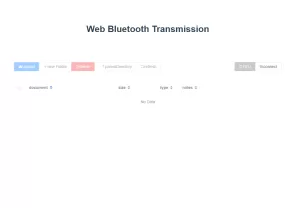
Go to the Web DFU page (Link usually provided in the project documentation:
https://thegecko.github.io/web-bluetooth-dfu/).
-
-
Prepare the Device:
-
On your Pixl.js, go to Settings -> Firmware Update to enter DFU Mode.
-
-
Load Firmware:
-
Drag and drop the downloaded firmware file into the box on the webpage.
-
-
Connect & Flash:
-
Click Select Device on the webpage.
-
A pairing window will appear. Look for a device named Pixl DFU.
-
Select it and click Pair/Connect.
-
-
Update:
-
The bar will fill up as the firmware transfers.
-
Once complete, the device will automatically reboot.
-
Summary of DFU Mode (Required for all methods)
To enter DFU (Device Firmware Update) mode manually:
-
Go to Settings.
-
Scroll down to Firmware Update.
-
Press the button. The device is now ready to receive the update.
video tutorial here: http://www.youtube.com/watch?v=vldNVaoqJg0
Latest version firmware download below:
version 2.16.0:
-Oled (Black) - Download Here
-LCD (White) - Download Here

Comments
No comments yet. Be the first to share your thoughts.