
User Manual: BLE File Transfer
The BLE File Transfer application enables you to upload, download, and organize files on your Pixl.js device directly from a computer or smartphone using Bluetooth Low Energy.
⚠️ Prerequisites
-
Hardware: A computer or smartphone with Bluetooth capabilities.
-
Software: A modern web browser that supports Web Bluetooth.
-
Windows/Mac/Android: Google Chrome, Microsoft Edge, or Opera.
-
iOS (iPhone/iPad): You must use a specialized browser like Bluefy or WebBLE (Safari does not support this feature by default).
-
1. Establishing a Connection
-
On your Pixl.js Device:
-
Navigate to the Main Menu.
-
Scroll down and select BLE File Transfer.
-
The screen will display a status indicating it is ready to connect.
-
-
On your Computer or Phone:
-
Open your compatible web browser.
-
Visit the official management site: https://pixl.amiibo.xyz/
-
Click the Connect button (usually a Bluetooth icon or a "Connect" text link) on the webpage.
-
-
Pairing:
-
A popup window will appear listing nearby Bluetooth devices.
-
Look for "Pixl.js" in the list.
-
Select it and click Pair or Connect.
-
2. Managing Files
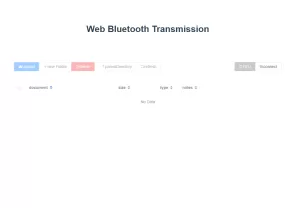
Once connected, the webpage will load a File Manager interface displaying the contents of your device.
-
Browsing: Click on folders (like
/amiibo/) to open them. Click..to go back up a directory. -
Uploading Files:
-
Navigate to the target folder.
-
Click the Upload button.
-
Select
.binfiles from your computer/phone to transfer them to the device.
-
-
Deleting Files:
-
Select the file(s) you wish to remove.
-
Click the Delete (Trash icon) button.
-
-
Creating Folders:
-
Use the New Folder option to organize your collection (e.g., creating specific folders for "Zelda" or "Mario").
-
3. Troubleshooting
-
Connection Failed? Ensure Bluetooth is enabled on your computer/phone and that no other device is currently connected to the Pixl.js.
-
"Not Supported" Error? Verify you are using a browser with Web Bluetooth support (Chrome or Edge). Firefox and standard Safari often do not work.
-
Slow Transfer? BLE transfer speeds are relatively slow compared to USB. This is normal behavior for Bluetooth Low Energy.

Comments
No comments yet. Be the first to share your thoughts.