
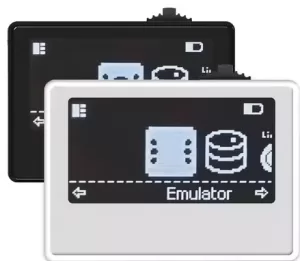
User Manual: The Pixl.js Amiibo Emulator
The Amiibo Emulator is the core application for using your own backup files. Unlike the Database app (which generates temporary tags), this tool allows you to browse, manage, and emulate specific .BIN files stored directly on your device.
1. Basic Navigation
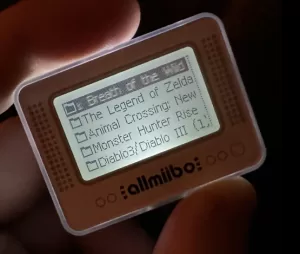
When you open the Emulator, you enter a file browser view of your local storage.
-
Scroll: Push the Thumbwheel left or right to highlight folders or files.
-
Select: Press the Middle Button to open a folder or select a
.BINfile. -
Change File: Once an Amiibo is loaded, you can use the side buttons to instantly switch to the next or previous file in the current folder without going back to the menu.
2. The Amiibo Dashboard
Once you select a .BIN file, it becomes the "Current Amiibo." The screen will display:
-
Amiibo Name
-
Filename
-
Current UUID (The serial number visible to the console)
-
Read-Only Status: If the file is locked, an "Info" (i) icon appears next to the name.
3. Tag Settings & Randomization
While an Amiibo is loaded, press the Middle Button to open the Tag Menu. This allows you to modify how the emulator behaves for that specific file.
-
Rand. Tag (Randomize): Generates a temporary random UUID for the current session. The new ID persists until you change files or select this option again.
-
Auto Rand. (Automatic Random): When enabled, the device generates a fresh UUID every time the game reads the tag.
-
Pro Tip: This allows you to use the same file multiple times in games that limit usage (e.g., getting multiple rewards per day in Zelda).
-
-
Read-only: Enabling this blocks the game from writing data back to the
.BINfile. Useful for preserving specific save states. -
Delete Tag: Permanently deletes the
.BINfile from storage.
Note: If you use Randomization (Manual or Auto), the file reverts to its original, real UUID the next time you load it from the file list.
4. File Management (Advanced)
You can manage your files directly on the device without connecting to a PC.
To access the File Menu: Highlight a file or folder, then Press and Hold the Middle Button for 1 second.
-
Create New Folder...: Organize your library by creating sub-directories.
-
Create New Tag...: Creates a "Blank" Amiibo
.BINfile.-
This acts like a fresh, empty NTAG215 card.
-
You can write data to this blank file using an external NFC programmer (like TagMo on Android or Thenaya on 3DS).
-
If you write a known Amiibo to it, the file will automatically rename itself to match the character.
-
-
Rename...: Change the name of the selected file or folder.
-
Delete...: Remove the selected item.
-
Warning: Deleting a folder will also delete all files and subfolders inside it!
-

Comments
No comments yet. Be the first to share your thoughts.