
Connect Wireless Gamepad Wii U Koopair: The Wii U Pro Controller is legendary for its battery life, but in 2025, they are getting harder to find and expensive. Wouldn't it be better if you could just use the PS4, PS5, or Nintendo Switch Pro controller you already own?
Thanks to the homebrew community, you can.
This guide will show you how to use Koopair (the companion app for the Bloopair module) to wirelessly connect almost any modern Bluetooth controller to your Nintendo Wii U.
What is Koopair (and Bloopair)?
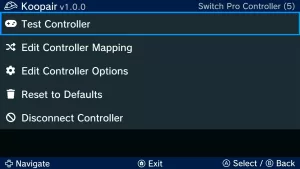
To avoid confusion: Bloopair is the "engine" that runs in the background of your modded Wii U, allowing it to recognize non-Nintendo Bluetooth signals. Koopair is the menu app (the user interface) that lets you manage these connections, customize button layouts, and pair specific stubborn controllers like the DualShock 3.
Together, they trick the Wii U into thinking your PS5 or Xbox controller is a native Wii U Pro Controller.
Prerequisites
Before we start, you need:
-
A Modded Wii U: Running Aroma environment (recommended) or Tiramisu.
-
Internet Connection: To download the app via the Homebrew App Store.
-
A Compatible Controller: (See the list below).
Step 1: Install Koopair (and Bloopair)
The easiest way to install this is through the HB App Store on your Wii U.
-
Launch the Homebrew Launcher on your Wii U.
-
Open the HB App Store.
-
Search for "Bloopair". (Note: You usually download the Bloopair package, which includes Koopair automatically).
-
Press Download to install it to your SD card.
-
Restart your Wii U.
-
Important: Bloopair needs to load as a module when the console starts. A reboot ensures the "hack" is active.
-
Step 2: How to Pair Your Controller
Once your console has restarted, you are ready to pair.
For Switch Pro, PS4, PS5, and Xbox One S/X
-
Turn on your Wii U and stay on the Wii U Menu.
-
Press the SYNC button on the front of your Wii U console.
-
Put your controller into Pairing Mode:
-
PS4/PS5: Hold
Share/Create+PS Buttonuntil the light bar flashes rapidly. -
Switch Pro: Hold the small Sync button on the top.
-
Xbox One: Hold the Sync button on the top (ensure it is a Bluetooth model).
-
-
The Wii U should detect the controller and assign it a player number (Player 1, 2, etc.).
For PS3 (DualShock 3)
The PS3 controller is unique because it doesn't have a sync button. You must use the Koopair app specifically for this.
-
Launch the Koopair app from the Wii U Menu or Homebrew Launcher.
-
Select "Pair Controller".
-
Connect your DualShock 3 to the Wii U using a USB cable.
-
Wait for the screen to say "Paired."
-
Disconnect the cable and press the PS Button. It will now connect wirelessly!
Step 3: Button Mapping & Settings (Using Koopair)
This is where the Koopair app shines. Since Nintendo's button layout (A, B, X, Y) is different from Xbox and PlayStation, your buttons might feel "backwards."
-
Open the Koopair app.
-
Select your connected controller.
-
Choose "Remap Buttons".
-
Here, you can swap A/B and X/Y to match your muscle memory.
-
Example: If you are using an Xbox controller, you might want the bottom button (A on Xbox) to act as the bottom button (B on Wii U) for jumping in Mario games.
-
Supported Controllers List
Not every controller works, but most do. Here is the current compatibility list:
-
Nintendo: Switch Pro Controller, Joy-Cons, Switch Online SNES/N64 controllers.
-
Sony: DualShock 3, DualShock 4, DualSense (PS5).
-
Microsoft: Xbox One S/X (Bluetooth Models).
-
Warning: Xbox Series S/X controllers and updated Xbox One controllers may not work if they have been updated to use "Bluetooth LE" (Low Energy), which the Wii U hardware does not support.
-
Troubleshooting Common Issues
The Controller connects but disconnects immediately. This is often a battery issue or interference. Ensure your controller is fully charged. If you are using an Xbox controller, it might have the incompatible Bluetooth LE firmware.
No Rumble? Rumble is supported on most controllers (PS4/PS5/Switch), but you may need to enable it inside the Koopair settings menu.
Can I play Wii games with this? Generally, no. Koopair emulates a Wii U Pro Controller. Most original Wii games (played via vWii) require a Wiimote. However, if you are playing GameCube games via Nintendont, these controllers will work!
Summary
Using Koopair allows you to give new life to your Wii U without hunting for expensive proprietary hardware. Just install Bloopair from the store, press Sync, and you are ready to play Mario Kart 8 with your DualSense!
ending of Connect Wireless Gamepad Wii U Koopair

Comments
No comments yet. Be the first to share your thoughts.