
Introduction
Whether you’re looking to protect your original expensive collection or playing fan-translated patches, knowing how to burn a PS1 disc correctly is essential. Modern burners and cheap media can often cause "stuttering" or "black screens" if the settings aren't dialed in. This guide will show you the gold standard for PS1 backups.
What You Need
-
High-Quality CD-Rs: Avoid "no-name" brands. Look for Verbatim DataLifePlus or Taiyo Yuden (CMG) if you can find them.
-
Disc Images: Your game files should ideally be in .BIN / .CUE format.
-
Software: ImgBurn (Windows) is the industry standard for this task.
-
Hardware: A PC with an internal or external DVD/CD writer.
Step 1: Get the Right Files
A proper PS1 backup usually consists of two files: a large .BIN (the data) and a small .CUE (the instructions for the laser).
Important: Always select the .CUE file when you are ready to burn. If you select the .BIN, the music tracks in the game may not play correctly.
Step 2: Use ImgBurn Settings
Open ImgBurn and select "Write image file to disc."
1. Browse for the .CUE file: Click the folder icon and select your game's CUE file.
2. Write Speed: This is the most debated topic. Do not necessarily burn at 1x or 2x. Modern CD-Rs are designed to be burned at higher speeds. A "sweet spot" for modern burners is typically 16x or 24x.
3. Write Mode: Ensure it is set to DAO (Disc-At-Once).
Step 3: The Burning Process
Click the large Write icon at the bottom.
-
Verify: It is a good idea to keep "Verify" checked. This ensures the data on the disc perfectly matches the file on your computer.
-
Wait: Avoid using your computer for heavy tasks (like gaming or video editing) while the burn is in progress to prevent "buffer underrun" errors.
Step 4: Testing on the Console
Once the disc tray pops open, your backup is ready.
-
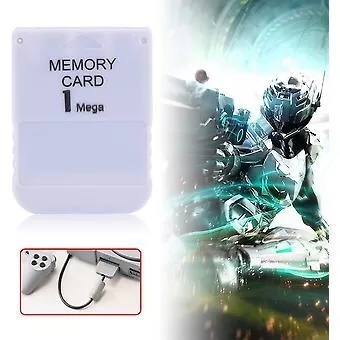
Note: Your PS1 must have a modchip, be using FreePSXBoot on a memory card, or use a Tonyhax exploit to play backup discs. An unmodified console will not boot "burnt" CDs. Or any modchip installed on ps1.
Common Troubleshooting
-
FMV Stuttering: If the intro movies skip, your burn speed was likely too high or the quality of your blank CD-R is low.
-
"Please Insert PlayStation Disc": The console doesn't recognize the disc. Check if your modchip is working or try a different brand of CD-R.
-
No Music: You likely burned the .BIN file instead of the .CUE file.
Comments
No comments yet. Be the first to share your thoughts.