
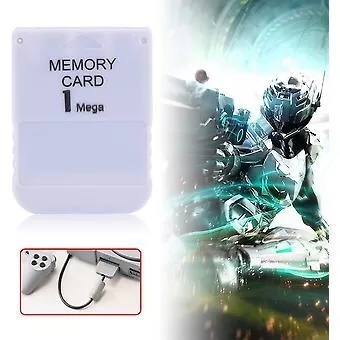
Troubleshooting Your High-Speed PS1 Memory Card
The High-Speed PS1 Memory Card is a reliable solution for storing game saves across all PS1 models and regions — but like any storage peripheral, it can occasionally run into issues. Before you assume the card is faulty, work through these common problems and their fixes. Most issues are straightforward to resolve without any special tools.
Problem 1: The PS1 Does Not Detect the Memory Card
This is one of the most frequently reported issues. You insert the card, power on the console, and the memory card manager shows nothing — or the game simply does not prompt you to save.
Possible Causes and Fixes
- Dirty or oxidised contacts: Over time, the gold contacts on the memory card and inside the console's memory card slot can accumulate dust, skin oils, or light oxidation. Power off the console, remove the card, and gently clean the card's contacts with a dry cotton swab. For stubborn residue, use a cotton swab very lightly dampened with isopropyl alcohol (90% or higher). Let it dry completely before reinserting.
- Wrong slot: The PS1 has two memory card slots — Slot 1 and Slot 2. Many games only recognise saves in Slot 1. Make sure the card is seated firmly in Slot 1 first.
- Incomplete insertion: The card must click fully into the slot. A partially inserted card will not make proper electrical contact. Remove and reinsert with firm, even pressure until you feel it seat.
- Slot damage on the console: If the slot pins are bent or broken, no memory card will work reliably. Inspect the slot with a torch. Bent pins can sometimes be carefully straightened with a fine-tipped tool, but a damaged slot may require professional repair.
Problem 2: Saves Are Not Writing Correctly or Appear Corrupted
You save your game, power off, and when you return the save is gone — or the memory card manager shows a corrupted file. This is frustrating but often fixable.
Possible Causes and Fixes
- Removing the card while data is writing: Never remove the memory card while the console's memory card access indicator is active (the small LED on some models, or while the screen is showing a save animation). Always wait until the save process is fully complete before powering off or ejecting.
- Power interruption during save: A sudden power cut while saving can corrupt the written block. If you have a corrupted save file, use the PS1's built-in Memory Card Manager (accessible from the main menu without a disc) to delete the corrupted block and free up space. You will lose that particular save, but the rest of the card's data should remain intact.
- Full memory card: The PS1 memory card format uses 15 save blocks. If all blocks are occupied, the console cannot write new data and may behave unexpectedly. Open the Memory Card Manager, review your saves, and delete any you no longer need to free up blocks.
- File system issues: In rare cases the card's internal directory can become inconsistent. Some third-party PS1 memory card utilities (used via a PC with an appropriate adapter, or through certain PS1 software tools) can scan and repair directory entries without erasing all saves.
Problem 3: The Memory Card Works in One Game but Not Another
Occasionally a card is detected by the system menu but a specific game refuses to save or load from it.
Possible Causes and Fixes
- Game-specific slot requirement: As mentioned, some titles hard-code saves to Slot 1. Check the game's manual or the in-game save screen to confirm which slot it expects.
- Incompatible save block size: A small number of PS1 titles require multiple contiguous free blocks for a single save. If your card is fragmented with only single free blocks scattered between occupied ones, the game may refuse to save. Delete some saves to create a larger contiguous free area.
- Regional quirks: The High-Speed PS1 Memory Card is designed to support all PS1 models and regions, so true regional incompatibility is uncommon. If a specific game still refuses to recognise the card, try reformatting via the PS1 Memory Card Manager as a last resort — this will erase all data on the card, so back up first if possible.
Problem 4: The Memory Card Is Recognised but Shows Fewer Than 15 Blocks
The standard PS1 memory card provides 15 usable save blocks. If the manager shows fewer, something has gone wrong with the card's formatting.
Fix
- Use the PS1's built-in Memory Card Manager to format the card. Navigate to the memory card options, select the card, and choose Format. This resets the file system to factory state and restores all 15 blocks. Note that formatting erases all data on the card — only do this when you have no saves you wish to keep, or after backing them up.
Problem 5: The Card Works Intermittently
The card is detected sometimes but not others, or saves appear and disappear between sessions.
Possible Causes and Fixes
- Worn slot spring tension: The memory card slot relies on spring-loaded contacts. On older consoles, these springs can weaken, causing intermittent contact. Gently wiggling the card while the console is on (carefully, without removing it) can confirm this — if detection changes, the slot contacts are the issue. A console technician can replace or re-tension the slot contacts.
- Dirty contacts (again): Intermittent behaviour is a classic sign of dirty contacts. Repeat the isopropyl alcohol cleaning process described above, paying close attention to every contact pad on the card.
- Electrostatic discharge: In dry environments, static can cause temporary detection failures. Ground yourself before handling the card and console.
General Maintenance Tips
- Store the memory card in a clean, dry location away from direct sunlight and heat sources.
- Avoid touching the gold contact pads with bare fingers — oils from skin accelerate oxidation.
- If you own multiple PS1 consoles, test the card in a second unit to isolate whether the problem is with the card or the console's slot.
- Keep the memory card slot on your console covered when not in use to prevent dust accumulation.
When to Consider a Replacement
If you have worked through every fix above and the card still fails to operate reliably, it may have reached the end of its serviceable life — or was damaged by a power event. In that case, picking up a fresh High-Speed PS1 Memory Card is the most practical next step. Starting with a new card also eliminates any ambiguity about whether the hardware or the console is causing the problem.
With the right care and a methodical approach to troubleshooting, most PS1 memory card issues can be resolved quickly. Work through each potential cause systematically, and you will almost always find the culprit before needing to reach for a replacement.
FAQ
Why is my PS1 not detecting my memory card?
The most common causes are dirty contacts, incomplete insertion, or a worn console slot. Clean the card's gold contacts with isopropyl alcohol, ensure it is fully seated in Slot 1, and inspect the console slot for bent pins.
How do I fix a corrupted PS1 memory card save?
Open the PS1 Memory Card Manager from the main menu (without a disc), locate the corrupted block, and delete it. The rest of your saves should be unaffected. If the corruption is widespread, formatting the card will restore all 15 blocks but erase all data.
How many save blocks does a standard PS1 memory card have?
A standard PS1 memory card provides 15 usable save blocks. If your card shows fewer, try formatting it via the PS1 Memory Card Manager to restore the full capacity.
Can I use a PS1 memory card in any slot?
The PS1 has two memory card slots, but many games require saves to be in Slot 1. Always try Slot 1 first if a game is not recognising your memory card.
How do I clean a PS1 memory card?
Use a dry cotton swab to wipe the gold contact pads. For stubborn residue, use a cotton swab lightly dampened with 90%+ isopropyl alcohol. Allow the contacts to dry completely before reinserting the card into the console.
Comments
No comments yet. Be the first to share your thoughts.